

If an older study does not offer screener objectives in the topic guide editor, contact the Conveo team about converting it.
Setting Up Screener Questions
You can add screener questions three ways:- Manually in the topic guide editor on the Design tab (steps below).
- Via the AI Design Assistant on the Design tab — ask it to add screener questions as part of setting up your study.
- Via the AI Recruit Assistant on the Recruit tab — describe the participants you want to qualify and it creates the screener questions alongside panels and quotas.
- Create a new question under a screener objective
- Choose Single-select, Multiselect, or Open text
- For choice questions, add answer options and set their qualification categories. For Open text, define the categories the AI should use to classify answers.
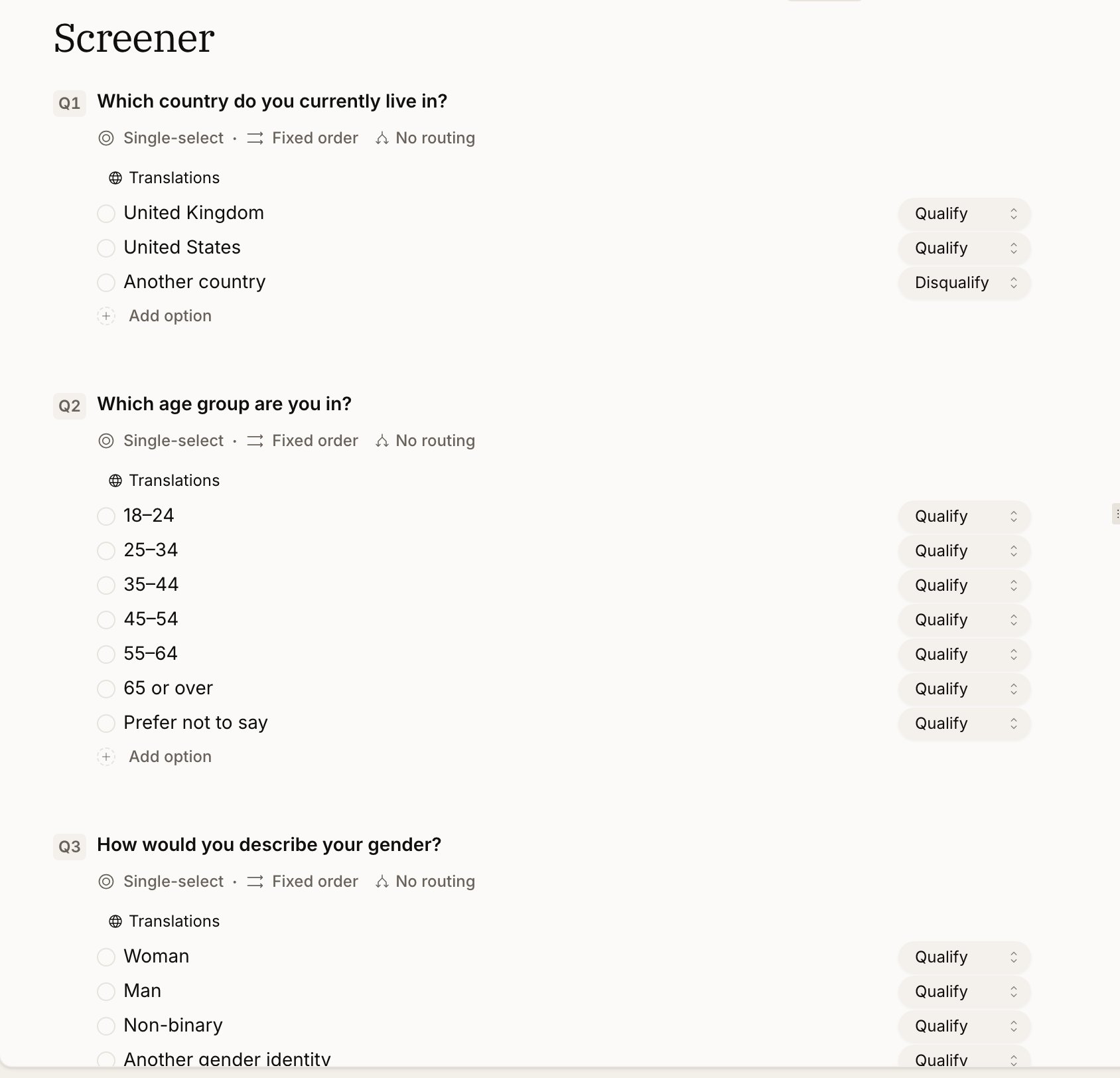
Qualification Categories
Single choice questions:
Multiple choice questions:
Participants must pass the screener questions they are asked. A disqualifying answer ends participation before the main interview. After screening is complete, quotas and any stimulus eligibility rules also determine whether the participant can continue.
Open Text Screeners
Use Open text when participants should answer in their own words, without seeing a list of qualifying answers. Conveo uses AI to assign each response to one researcher-defined category. That category’s Qualify or Disqualify setting determines the screening result.- Add an Open text question to a screener objective, manually or with a design or recruiting assistant.
- Use Add category to define each possible classification.
- Give each category a clear label and a description explaining which answers belong in it.
- Set each category to Qualify or Disqualify.
- Test the study with qualifying, disqualifying, ambiguous, and unexpected responses before recruiting.
Classification is an AI interpretation, not a guarantee that the participant meets your criteria. Conveo chooses one category; it does not automatically invent an “uncertain” category. Include a category and instructions for answers that do not clearly fit. If classification fails, the answer is not silently assigned a fallback category.
Example
Question: “Do you currently use our product?” (Single choice)- “Yes, regularly” → Qualify
- “Yes, occasionally” → Qualify
- “No, I’ve never used it” → Disqualify
- “Dashboard” → Must select
- “Reporting” → May select
- “None of the above” → Disqualify
Require at least one of several answers
On a multi-select screener, set each answer that can qualify the participant to At least one. A participant must select one or more of those answers to continue. Other answers can stay May select, and an answer that should always screen someone out can be set to Disqualify. Only answers shown to a participant count. If routing hides every At least one answer, that requirement does not apply to that participant. For example, on “Which pets do you own?”, mark “Cat” and “Dog” At least one, and “Rabbit” May select. A participant who selects “Cat” and “Rabbit” qualifies; someone who selects only “Rabbit” is screened out. This also works in test interviews and uses the panel’s screen-out destination. Must select has a different meaning: every answer marked Must select is required.Panel Provider Integration
For recruitment links configured with panel redirects, Conveo sends participants to the corresponding outcome URL. A failed screener uses the screen-out destination; a full quota or response limit uses the quota-reached destination. Provider billing and incentives depend on the recruitment arrangement, so do not infer a billing guarantee from an interview status.Advanced Recruiting with Quotas
Screener questions can do more than just qualify or disqualify — you can use them with quotas to set targets and admission limits for segments of your sample, such as dog and cat owners or age groups. Read the quota behavior and limitations before interpreting a target as a guaranteed completed sample.Screening in Diary Studies
Screener routing can limit questions to the first diary entry. If a returning participant is asked screeners again, a disqualifying answer still screens them out. Stimulus eligibility uses the current interview’s screener answers; it does not automatically reuse answers from a previous diary entry. Review screener-directed allocation before combining eligibility rules with first-entry-only screeners.Viewing Screener Results
Screener responses appear in the Interview Grid as columns and in Question Analysis for aggregate views. You can filter your analysis by screener responses to compare segments.Need help? Contact us at support@conveo.ai